After the Call

Everything in this chapter lives in the highlighted hop: Parrot Cloud keeps the transcript, recording, and report of every call.
Every call — answered, missed, or failed — lands in Call history with a transcript, a verdict on what happened, and (a moment later) an AI-written recap. This page shows you where to find each piece and how to read it.
The Call history page
Open Call history in the console. Every call across your devices is listed newest-first, searchable by caller, assistant, or title, and exportable to CSV. The All / Answered / Missed filter is deliberately blunt: Missed is everything that didn't become a two-way conversation — rung-out calls, failures, and calls your assistant gave up on alike.
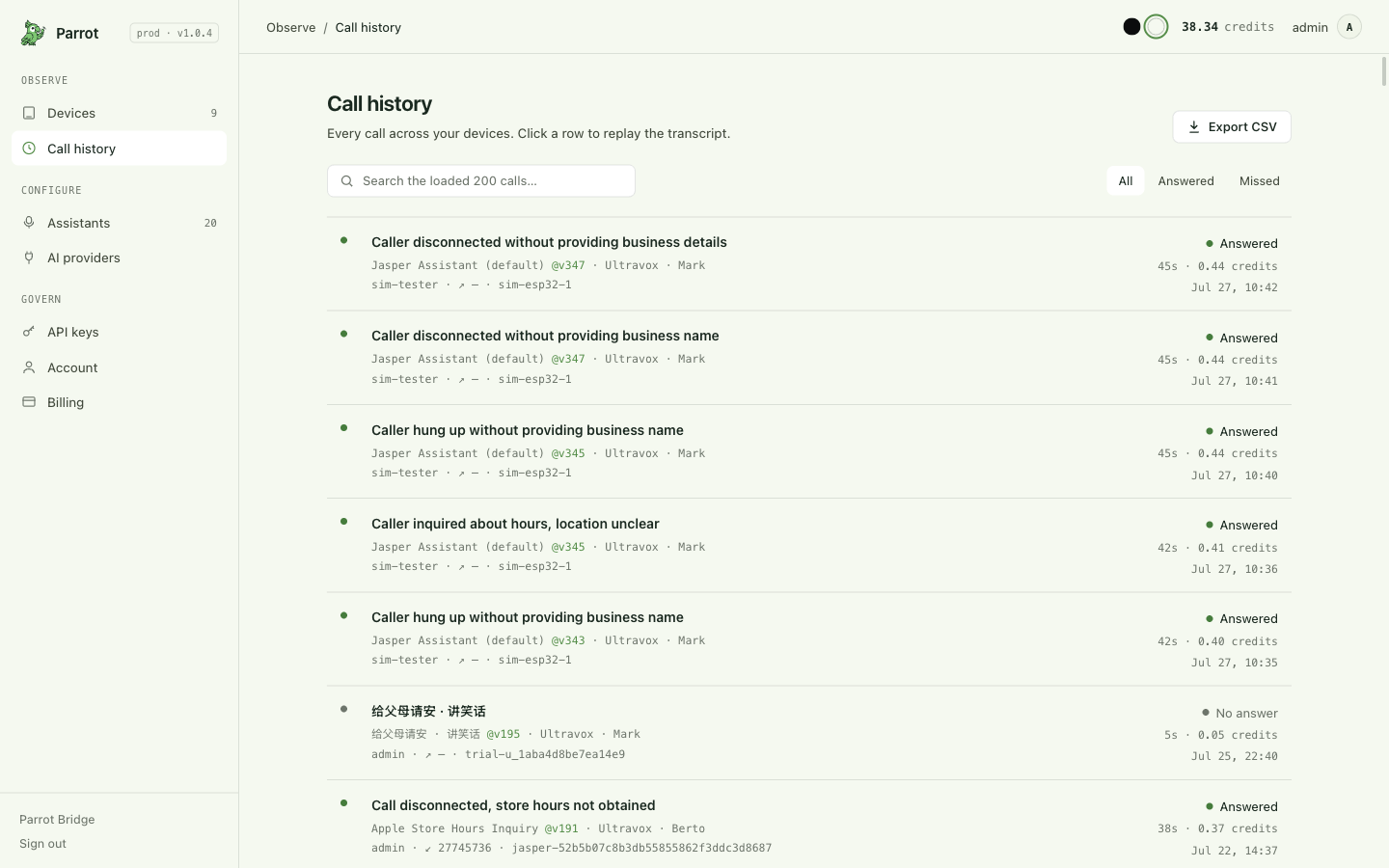
Each row's headline is the AI-written title of the call once it's ready;
until then it shows the assistant's name. The row also pins the exact
assistant version the call ran (the @v… tag — click it to view that
version read-only). Click the row to open the transcript.
The list loads the most recent 200 calls (a Load more extends it) — search and the CSV export cover what's loaded.
The call kinds
Under each title, the row says who took the call live — the same fact the board itself attributes, so History can tell an assistant call from your own at a glance:
| Shown as | Who took it | What the row means |
|---|---|---|
| Parrot answered | The board picked up the ring, or you/your agent answered it from the console | An assistant call, incoming (↙) |
| Parrot dialed | Placed from the console or by your agent | An assistant call, outgoing (↗) |
| Your call | You answered or dialed on the phone | Your conversation — the assistant was on it only while you routed the call's audio to the board (Who's on the call) |
The kind says who started it; how much of the call the assistant was actually on is its own fact, because the assistant can leave and rejoin any call mid-way (the phone's audio-route selector). A row where the assistant was on for only part of the call shows a small "Parrot on m:ss" chip; a call it never joined reads dimmed with "Parrot not on this call" — a timestamp for your line's records, with no transcript, no recording, and no charge. Calls the assistant carried end to end — the normal case — show nothing extra.
Older calls (before this attribution existed) and calls that only rang show no kind — nothing is guessed after the fact.
Transcript & replay
The transcript view shows the conversation turn by turn — the other party and your assistant — synced to the actual recorded audio. Click any line to play from that moment; the rail has a scrubber, per-side level meters and mutes.
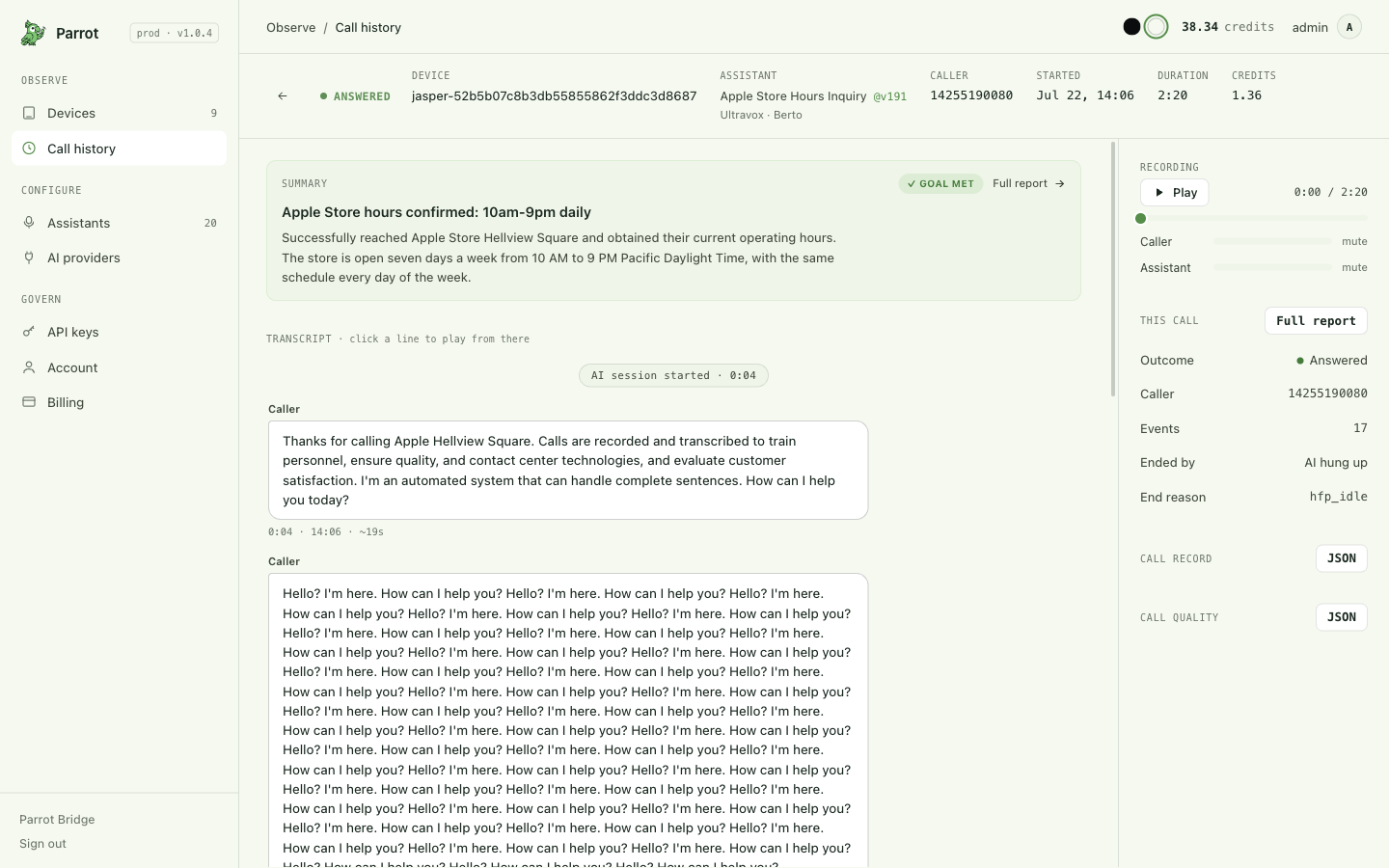
Once the AI summary is ready, it appears as a card above the transcript with a Goal met / Goal not met chip — click it to open the full call report. If the call never connected (so there's no transcript), the card points you at the call's statistics instead, so there's always a way in.
The call report
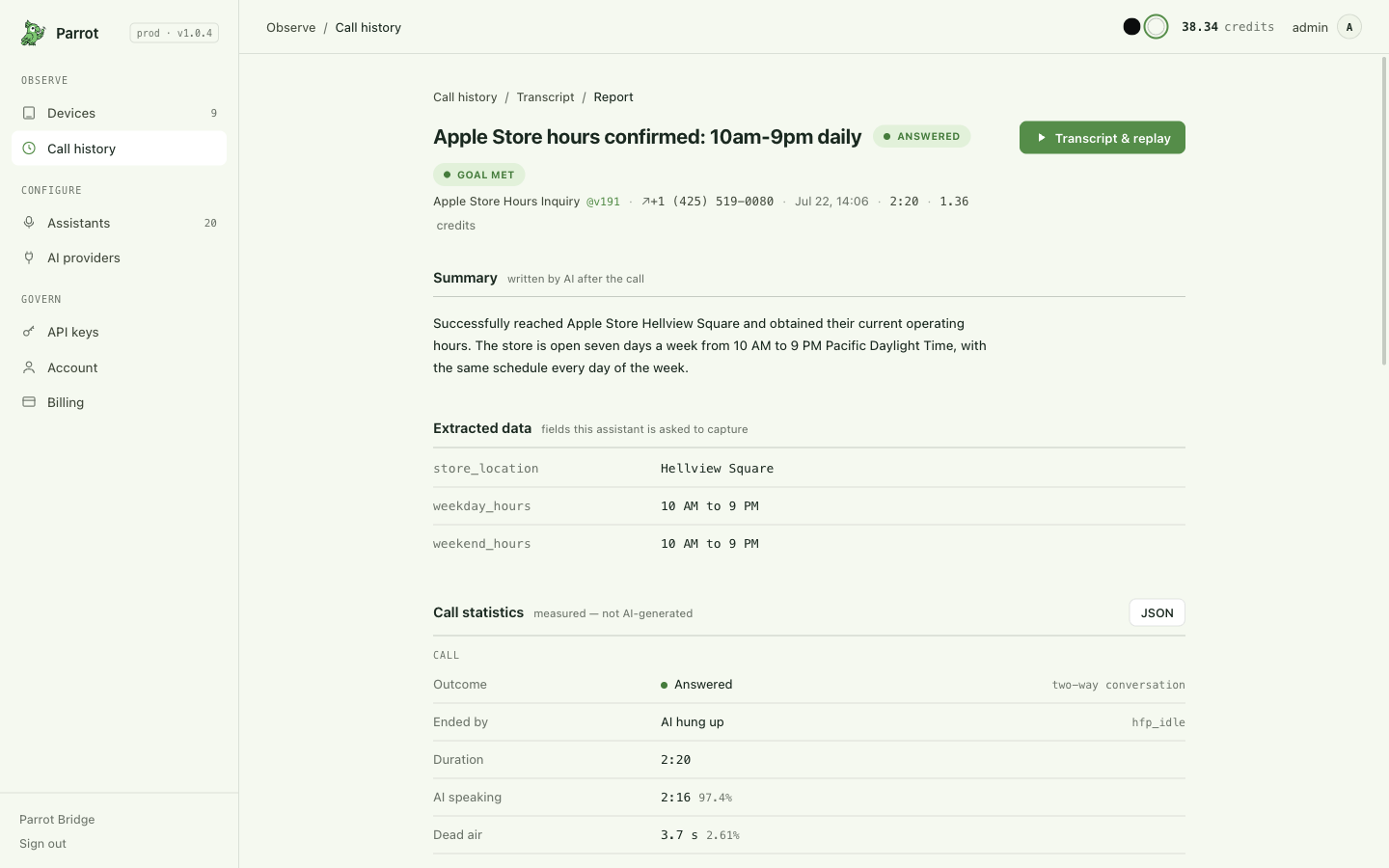
The report is the full picture of one call, split into clearly-labeled halves so you always know what's measured and what's AI-written:
- Summary — a short recap (what happened, did it succeed, any follow-up needed), explicitly labeled as written by AI.
- Extracted data — if your assistant defines output variables (a confirmation number, a quoted price — see Customizing your assistant), whatever the call produced appears here. A field marked req in the editor gates the "Goal met" verdict — no capture, no success.
- Call statistics — measured, not AI-generated: duration, how much of it the AI spent talking, dead air, how quickly the call connected and the AI first responded, and transport/audio-quality numbers. Every section has a JSON button if you want the raw numbers.
- Health — anything that went wrong on the line during the call (audio dropouts, a connection restart…), most serious first — or "no issues detected."
- Details — direction, number, device, assistant
@version, firmware & bridge versions, credits used, and ids.
Two different \"did it work?\" answers
The report's outcome answers "did the call connect and reach a person?" The summary's Goal met flag answers "did the AI accomplish what you asked?" A call can connect fine and still fail its goal — or vice versa. The report never merges the two.
Is the AI's summary trustworthy?
The summary is labeled as AI-written and judged against what you asked the call to do. The measured parts of the report — duration, outcome, who hung up, audio quality — are never AI-generated, so you can always fall back to the transcript and the numbers.
What "outcome" means
Every finished call gets exactly one outcome, decided from hard signals (who spoke, who hung up, what failed) — never guessed by an AI:
| Outcome | Shown as | Meaning | Worth redialing? |
|---|---|---|---|
answered |
Answered | A real two-way conversation happened. | No — it connected. |
no_answer |
No answer | Nobody engaged — it rang out or went nowhere. | Yes |
agent_hangup |
Agent hung up | Nobody engaged and your assistant chose to hang up. | No |
needs_human |
Needs human | Your assistant escalated — it needs your input. | No — it needs you |
error |
Failed | Something failed on our side or the AI vendor's. | Sometimes — transient failures yes |
Alongside it, ended_by records who actually closed the line: your assistant, the other party, a dropped connection, an explicit stop from you, or a server fault. The outcome is available the moment the call ends; the summary and extracted data can take a little longer, and the outcome never waits for them.
Troubleshooting
There's no summary on my call
The summary is written a few moments after the call ends — refresh. A call with no conversation (nobody answered) gets no summary at all; the outcome and statistics are still there.
The report has no Extracted-data section / fields weren't captured
The section appears when the call produced something to show. The assistant only fills a field if the conversation actually yielded it — check the transcript; if the information was said but not captured, tighten the field's description under the editor's Tools → Output variables (Customizing your assistant).
Where this fits
Reading calls is half the loop — the other half is making the assistant better at them. That's next: Customizing your assistant.