Quickstart: Your First Call
Five steps, all in the browser — about ten minutes from a board in a box to an AI making a real phone call. No software to install.
You need: a Parrot board and a USB data cable (which board to buy), Google Chrome on a desktop (the hardware Bridge is programmed over Web Serial and currently supports Chrome only), your phone (it keeps its number), and a Parrot account.
Step 1 — Open the Parrot Bridge page and connect your board
The Parrot Bridge page is the browser app that programs your board and
then hosts its connection: open it here. It lives at
/bridge/ on the same host as the console, and the console's sidebar has a
Parrot Bridge entry right under Devices (it opens in a new tab — keep
that tab open while a line is live). It asks you to sign in first.
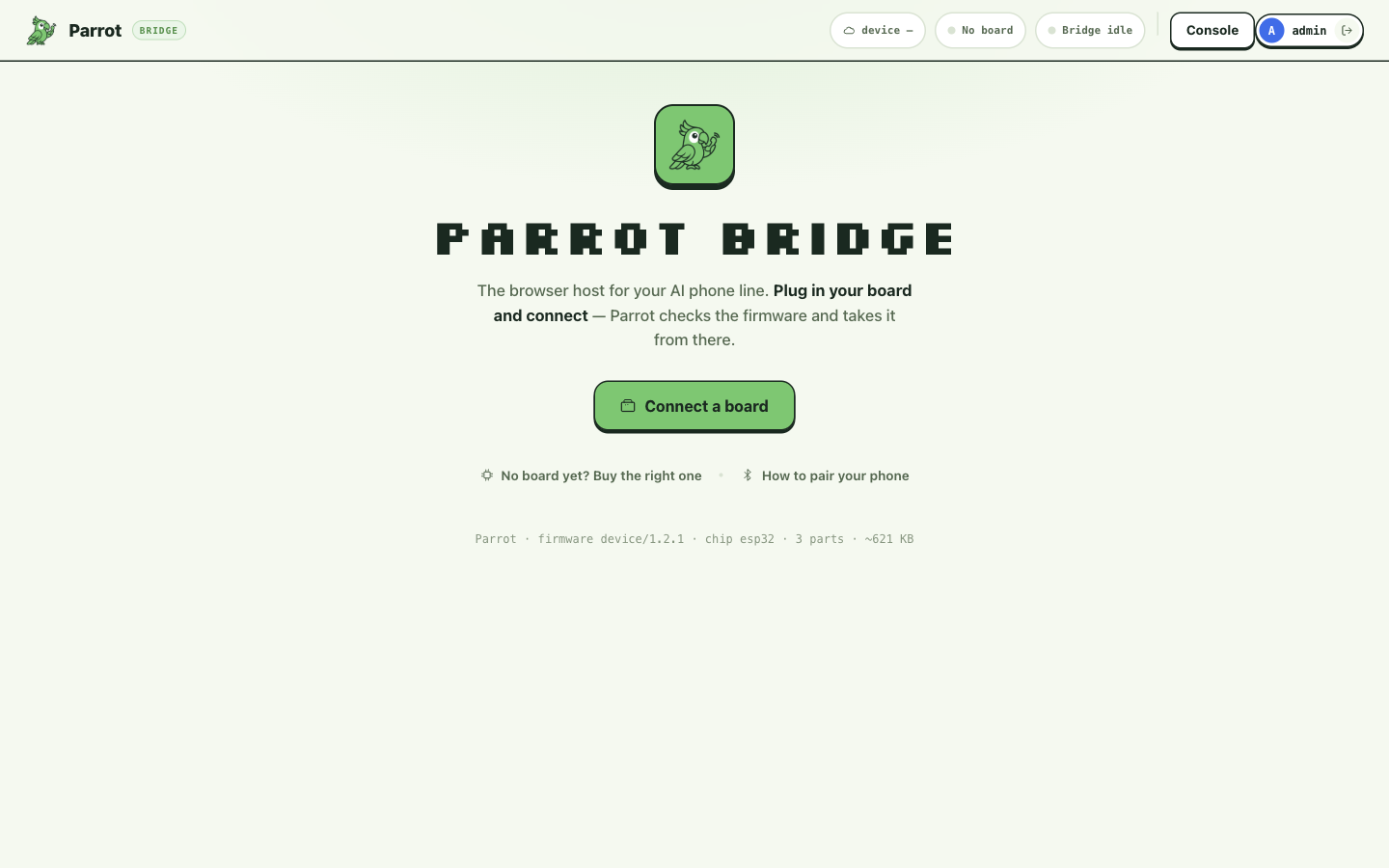
Plug the board in and click Connect a board — Chrome shows a picker of USB serial ports; pick the board. The page reads the chip over serial, checks it's a phone-capable board, and reads any firmware already on it.
No port shows up, or connecting fails
Nine times out of ten it's the cable — many carry power only, so try another. If a port appears but the connection fails, the board needs a manual nudge into its programming mode — the page shows the exact button sequence when this happens. The short version: hold BOOT → tap RST → release RST → still holding BOOT, click Connect again → release BOOT at "Detecting…" (releasing BOOT too early is the classic mistake). Step-by-step with a video: Your board & firmware.
Step 2 — Set up and flash
The setup screen asks for one thing: a device name. That's what your phone's Bluetooth list will show, so make it recognizable (there's a shuffle button if you'd rather adopt a bird). Under Board settings there's a single baked-in toggle — the status light, on by default (what it does).
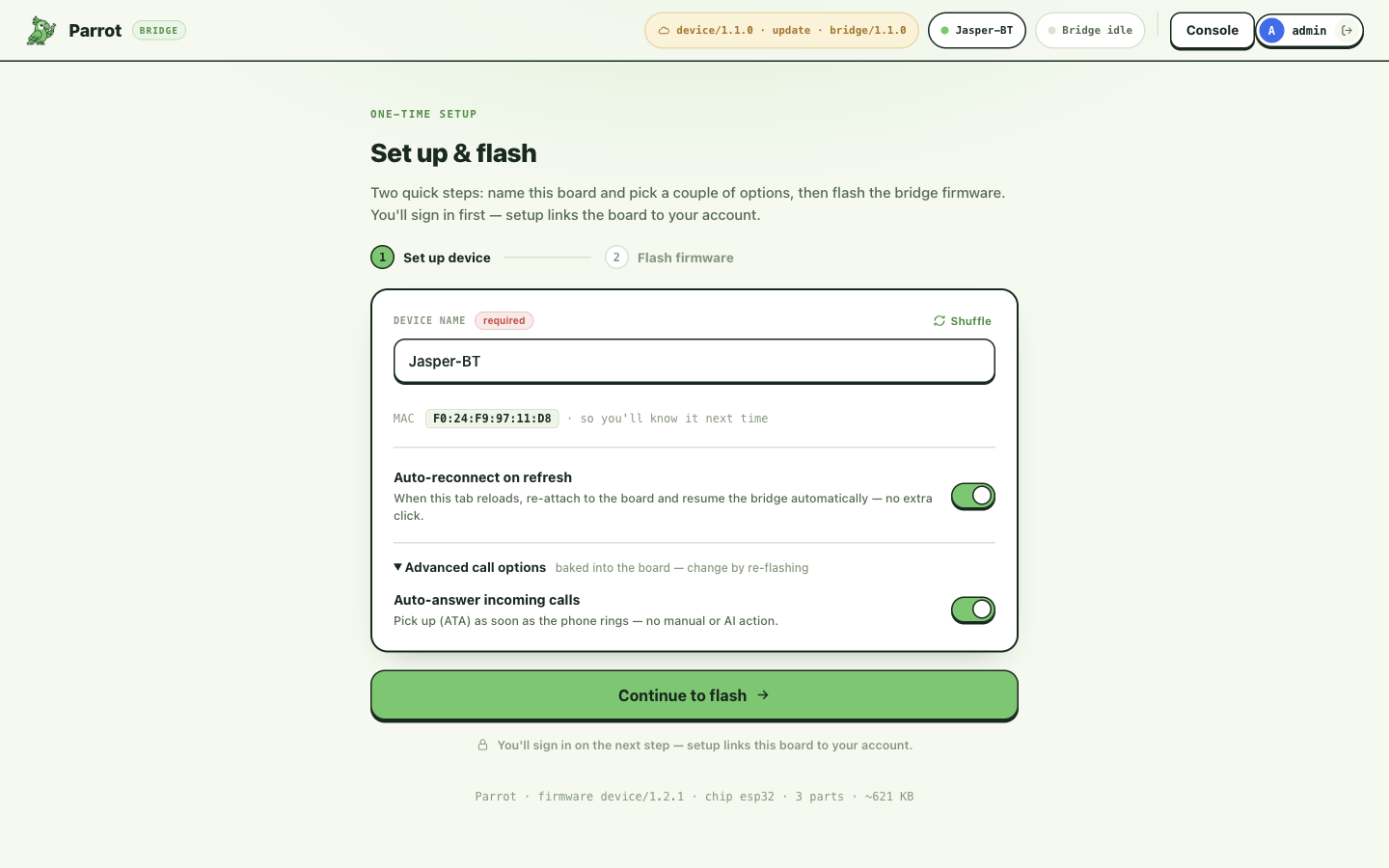
Click Continue to flash, review the version chips (what's on the board now → what the cloud has), then Flash firmware. About a minute.
Flashing is also registration: the board comes up provisioned and claimed to your account — there's no separate "add device" chore.
Step 3 — Start the board and run the bridge
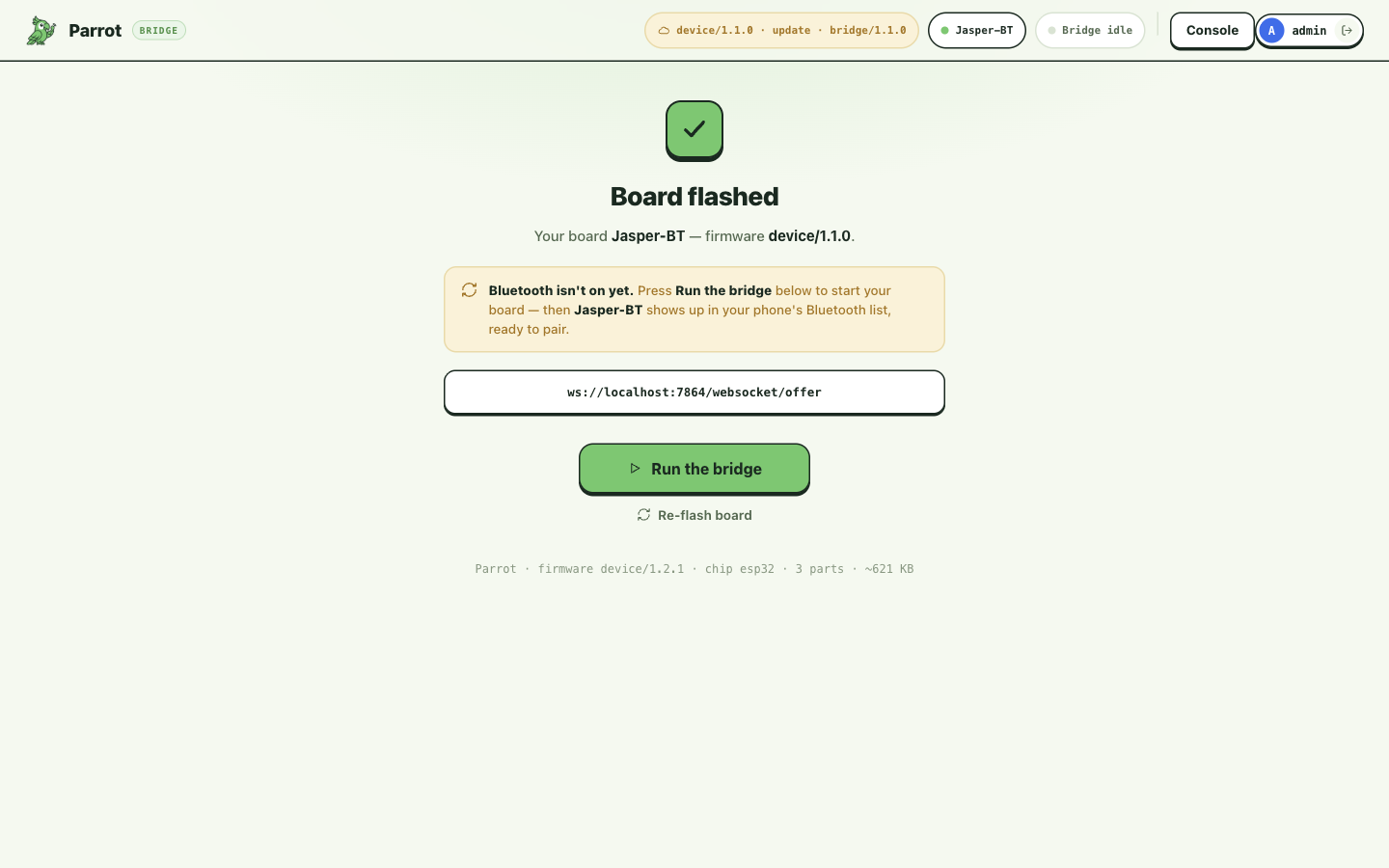
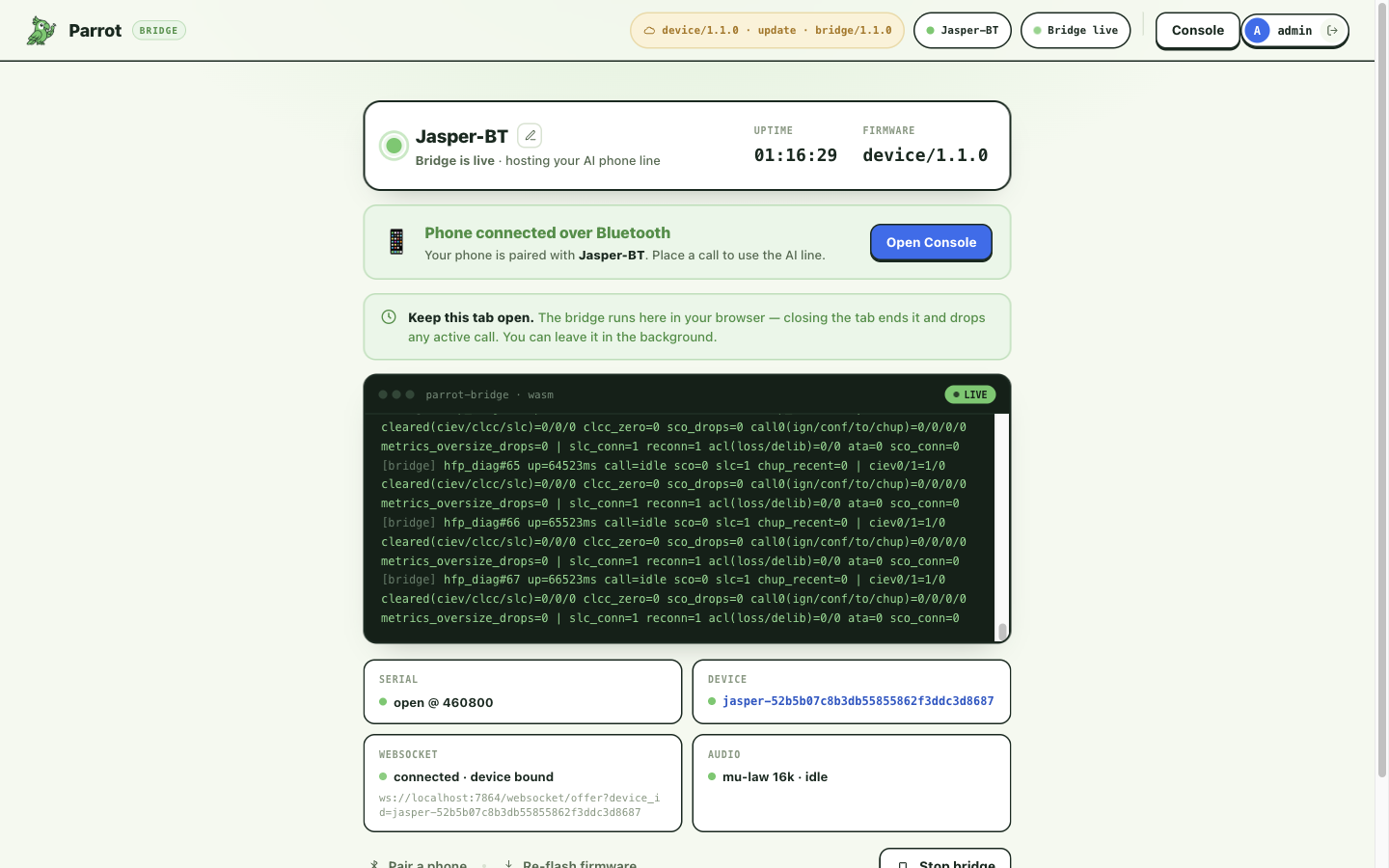
After flashing you land on the Board flashed screen. The freshly written firmware doesn't start by itself: tap the board's RST button (or unplug and replug it), then click Run the bridge.
The bridge comes up live in the tab: status tiles for Serial / Device / Server link / Audio go green, and the banner up top walks you through the next step. (The board's Bluetooth is only discoverable while the bridge is healthy — that's deliberate: a board your phone can see is a board that can carry a call.)
Keep this tab open
The board's connection runs in that tab — closing it takes the line offline and drops any active call. Leaving it in the background is fine.
Step 4 — Pair your phone
With the bridge live, the banner reads Ready to pair — Bluetooth is on.
On your phone: Settings → Bluetooth → tap the board's name. It pairs
like a headset — no code on modern phones (enter 0000 if yours insists).
From now on calls route through the board automatically (the depth on this
link — what it can do, where call audio lives — is the board chapter's
Your phone & the HFP link).
As soon as the bridge has reached Parrot, the banner carries an Open this device in the console button — it is there while you pair, and it lands on this board's own page. Click it (it opens a new tab, so the bridge keeps running):
Step 5 — Place your first call
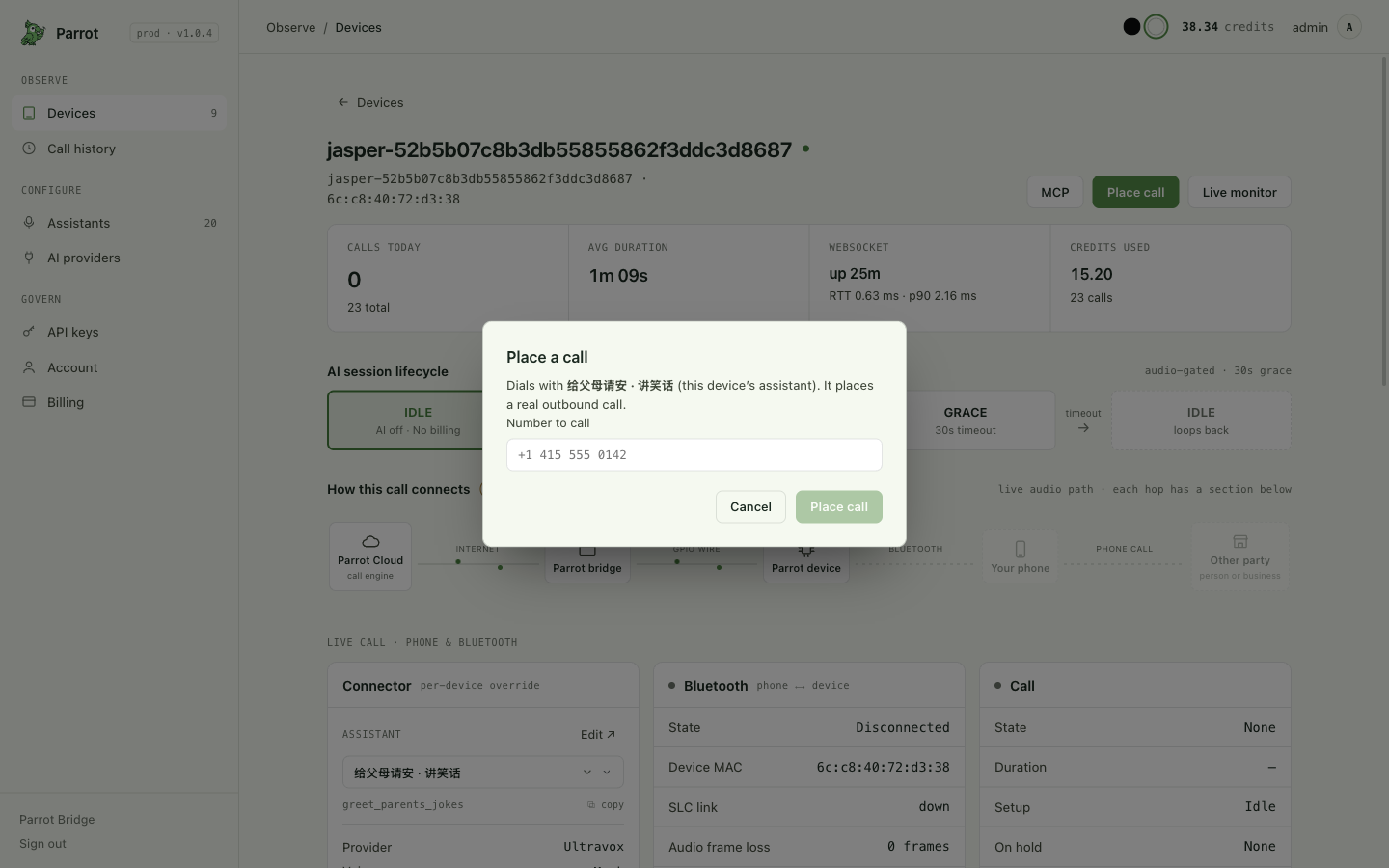
In the console: Devices → your board (Online, "Idle · ready") → Place call. Dial a number you can test against — your own cell is perfect. Pick up, say hello, and watch the conversation transcribe itself live while the assistant talks to you.
When you hang up, the call is waiting in Call history — full transcript synced to the audio recording, plus a short AI-written summary.
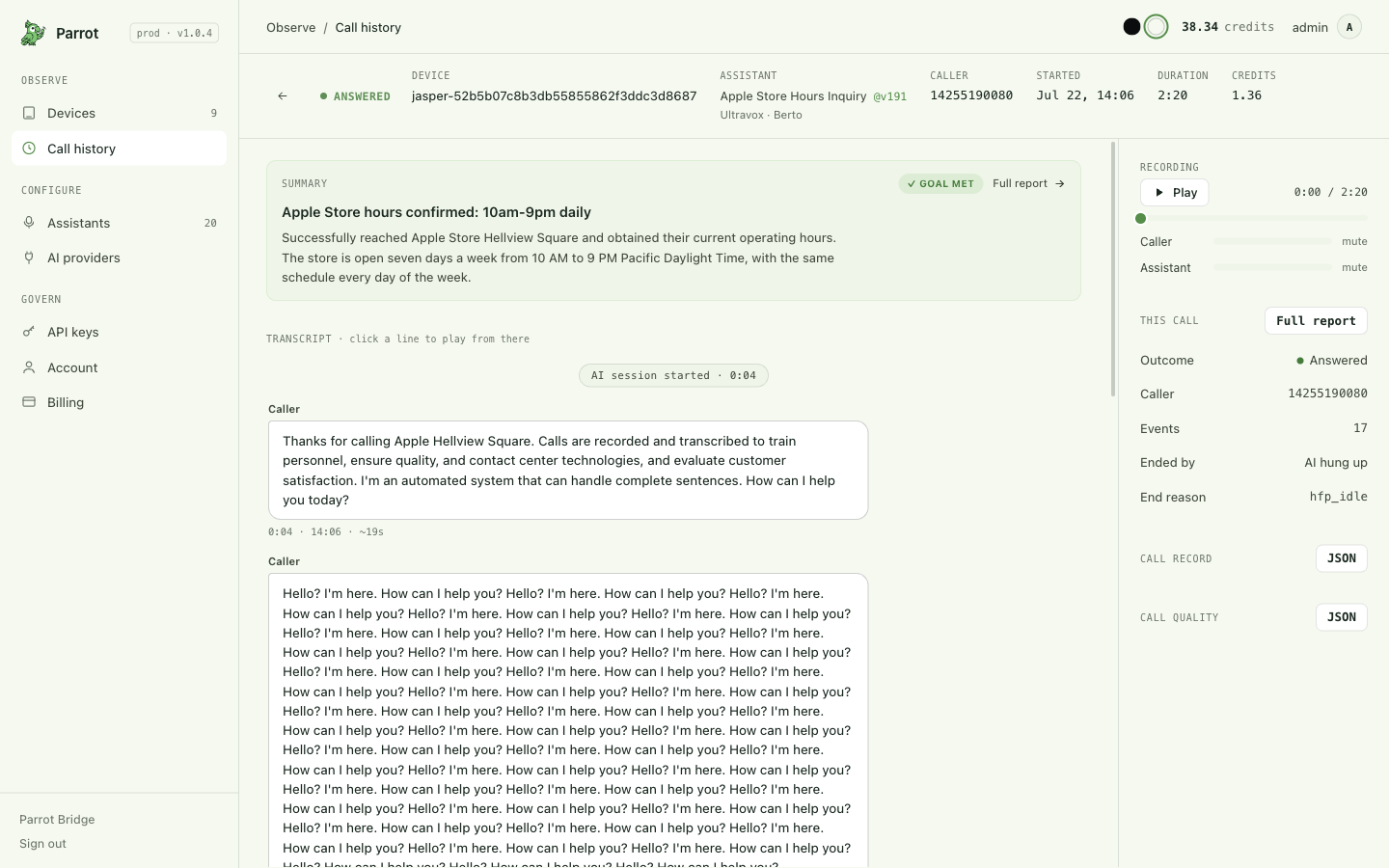
That's the whole loop: a real call, on your real line, handled by an AI, with a record you can read.
Where next
- Make the assistant yours — its goal, voice, and the data it should collect: Customizing your assistant
- Give your AI agent the phone — two-step MCP setup: Connect your AI agent
Questions and fix-its live where you'd hit them — each chapter has its own collapsed question and troubleshooting boxes.