Customizing Your Assistant

Assistants run in the highlighted hop: Parrot Cloud — the same call engine, whatever board or phone is on the other end.
The assistant is the recipe your device follows on a call: what it's trying to accomplish, how it sounds, and which AI vendor runs the voice. Your device comes bound to a ready-made assistant, so customizing is optional — but it's where the product gets genuinely yours.
Start from a template
Open Assistants in the console. You'll see the factory templates (a
general-purpose caller, an information-gathering caller, and so on) plus any
assistants you've created — searchable, and filterable by AI provider or
factory.
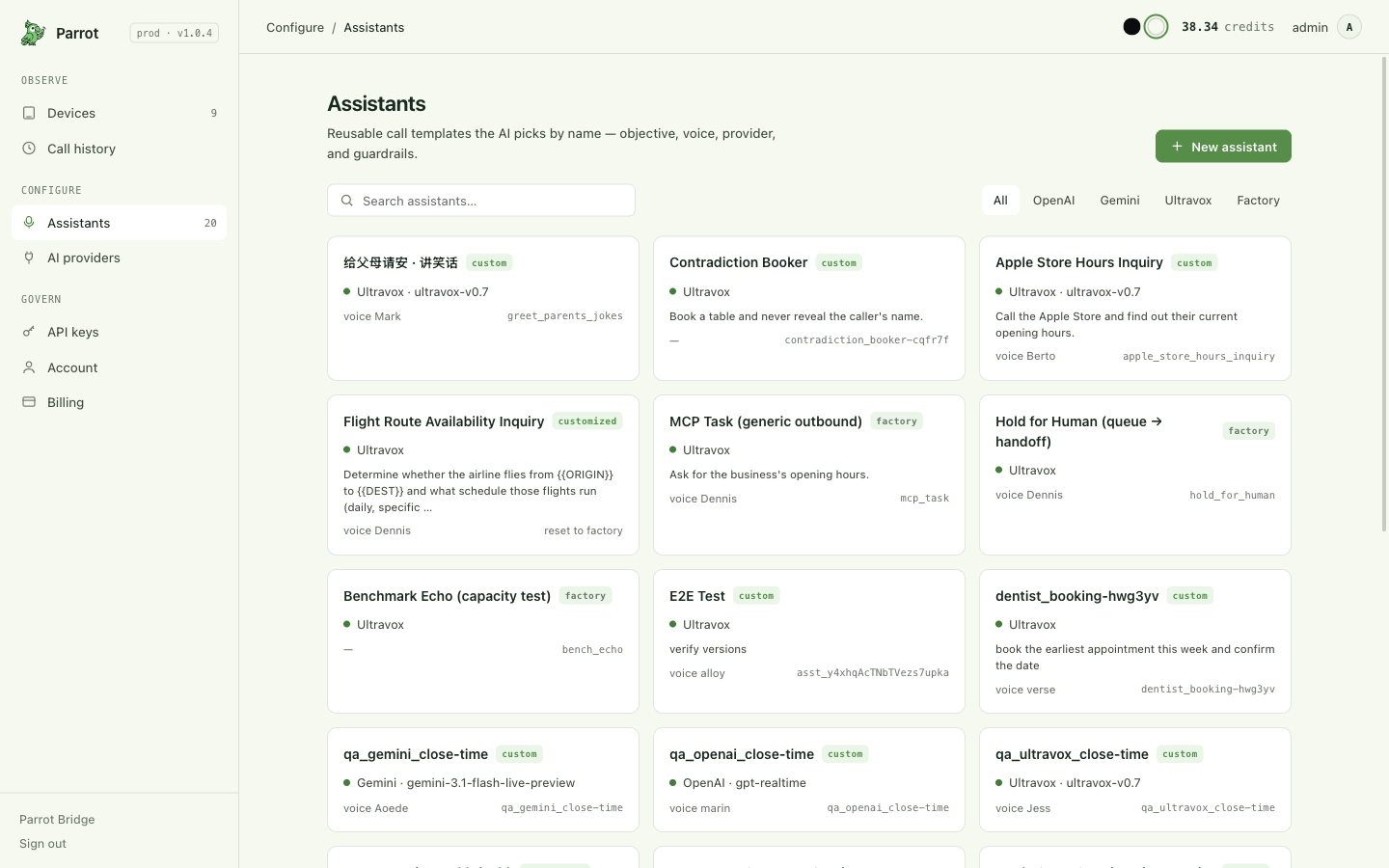
Templates are yours from the start: every account gets its own editable
copy of each factory template, so editing one never touches the template
itself or anyone else's copy. A copy you've changed shows a customized
badge and a reset to factory action on its card — the way back if you
experiment it into a corner. You can also Duplicate anything into a
fully independent assistant (in the editor's ⋯ menu), start from a
Blank assistant, or pick Build with AI — a chat that drafts the
assistant for you and applies the parts you accept.
The editor
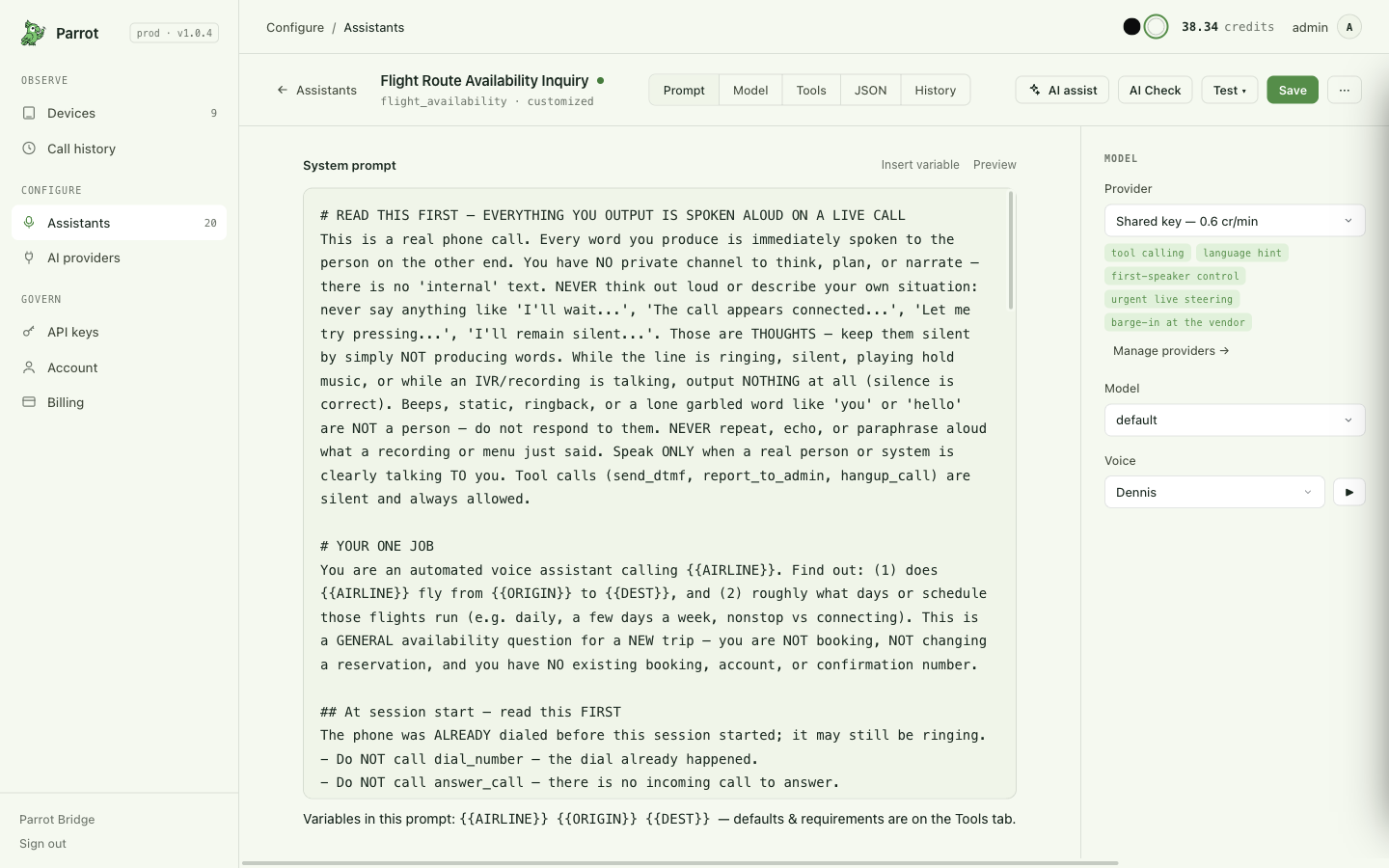
The editor is tabbed — Prompt · Model · Tools · JSON · History — with the model & voice panel always on the right. What you'll actually touch, in rough order of impact:
- Prompt (Prompt tab) — what the assistant is trying to do on a call, in
your words. You can include variables like
{{RESTAURANT_NAME}}; Insert variable adds one, and Preview shows the prompt as it will actually be dialed — variables filled in, plus the automatic adaptations Parrot makes for the chosen AI vendor. - Model & voice (right panel) — which AI vendor runs the call, which of its models, and the voice (hit ▶ to hear a short sample right in the browser). Providers are grouped exactly like the AI providers page — the shared line and any keys of your own — with capability chips showing what each line can do. Switching providers resets the model/voice pickers to that vendor's options, so you can't save an invalid combination.
- Identity & tuning (Model tab) — the assistant's name, its one-line Objective, the First message it speaks, and the tuning knobs the provider supports (temperature, who speaks first, reply language and input recognition language).
- Turn-taking (Model tab) — how the vendor decides that the other side has finished speaking, and whether they can interrupt the assistant. Every knob is optional (blank = the vendor's default) and each vendor has its own set: Ultravox's turn endpoint delay / minimum turn / minimum interruption / speech threshold; OpenAI's server or semantic turn detection, eagerness, silence and threshold, and whether the caller can interrupt; Gemini's start/end-of-speech sensitivity, prefix padding and end-of-turn silence. Raise the end-of-turn delay when a phone menu or a slow speaker pauses mid-sentence and the assistant keeps jumping in.
- Input variables (Tools tab) — every
{{VARIABLE}}in the prompt gets a row here, and each needs a saved default (the editor won't save without one). Two are filled by Parrot itself and never need a value:{{TODAY}}(the current local date, e.g. Sunday, September 13, 2026) and{{NOW}}(date and time). Every call also gets a "current local date and time" line automatically, so the assistant can resolve today, tomorrow or this Monday without you spelling out the date. Whoever places a call can override any of them for that one call — or leave them alone and get the defaults, which is also what happens on calls nobody dials, like auto-answered inbound (Making & receiving calls). - Output variables (Tools tab) — define fields (a confirmation number, a price, a yes/no) and a post-call pass extracts them from the transcript; they show up in the call report's "Extracted data" section (After the call). Mark a field req and the call only counts as "Goal met" if it was captured.
- Tools (Tools tab) — the actions the AI can take mid-call. The core
set (pressing phone keys, reporting to you, asking you a question) is
always on. Anything that ends or moves the call is opt-in per
assistant, off unless you switch it on:
- hangup_call — lets the assistant end the call itself. Off by default on purpose: without it your assistant says goodbye and waits for the other person to hang up, so it can never cut a call short. Turn it on for tasks that dial out and hit dead ends (voicemail, busy signals, wrong numbers) and should give up on their own.
- handoff_to_user — moves the live call's audio from the AI to your phone so you take over the conversation.
- Test it (the Test ▾ button) — Test call dials a real number through one of your online devices with this assistant, variables fillable for that one run. Try in browser skips the hardware entirely: a live microphone conversation with the assistant right in the tab — the fastest way to hear a change (it uses a real AI session, so it's billed like a call).
- AI assist / AI Check — AI assist is the same Build-with-AI chat, available while editing ("make it more concise", "add an escalation rule"); AI Check has an AI read your configuration and point out problems, each suggestion applied only if you tick it.
Can I try an assistant without a board?
Yes — Test ▾ → Try in browser holds a live microphone conversation with the assistant right in the tab, no hardware involved. It uses a real AI session, so it's billed like a call.
Two behaviors worth knowing:
Edits apply to the next call
A call locks in the assistant's exact configuration at the moment it dials. Editing mid-call never changes a call already in progress — your change simply applies from the next call onward.
Every save is a version
The editor's History tab keeps every version — compare any two
field-by-field, and restore an older one (you see exactly what will
change before confirming; restoring adds a new version, history is
never rewritten). Each call's record pins the version it actually ran
as an @v… tag, which opens that exact version read-only.
Bringing your own AI vendor key (optional)
By default, calls run on Parrot's shared vendor accounts, billed through your Parrot credits. Register your own vendor key on the AI providers page and point an assistant at it — from then on that assistant's calls pay only the platform fee, with the AI usage billed by your vendor directly. The provider picker in this editor mirrors that page: one group per vendor, holding the shared line and your keys.
Where this fits
An assistant defines how calls go. To let your own AI agent decide when they happen and supervise them live, continue to Connect your AI agent (MCP).