Your Board & Firmware

This chapter covers the highlighted hops: the Parrot device and your phone.
Everything hardware, in the order you'll meet it: which board to buy and why the antenna matters, the phone side (pairing and the HFP link), the board's settings — and then the firmware: what flashing actually does, the bootloader dance when it's needed, and how versions and updates work.
Which board to buy
The one rule: get a classic ESP32 (WROOM-32) with a CP2102 or FTDI USB chip.
Phone audio over Bluetooth (the Hands-Free Profile, HFP) lives only on the classic ESP32. The newer-looking parts — anything labeled -S3, -C3, -C6, or -S2 — are BLE-only and physically cannot carry a phone call, no matter what else the listing promises. This isn't a Parrot limitation — it's the chips themselves: in Espressif's own SoC lineup and product selector, the original ESP32 series is the only one with Classic Bluetooth (BR/EDR) alongside BLE, and phone calls ride Classic. The Parrot Bridge page refuses the wrong chips at Connect — twice, in fact: boards using Espressif's built-in USB are blocked before any probe, and an S3/C3 hiding behind a normal USB-serial chip is caught when the chip identifies itself.
The second thing that matters is the board's USB-serial chip — it decides whether the board shows up in the browser without driver hassle:
| USB chip | Verdict |
|---|---|
| CP2102 / CP2102N | 🟢 Best — driverless on macOS and Windows |
| FT232R (FTDI) | 🟢 Great — also driverless |
| CH340 / CH340C | 🟡 Works, but always needs the WCH driver installed first |
| CH9102 | 🟡 Driverless only on recent macOS |
| PL2303 | 🔴 Avoid — broken drivers on modern macOS |
Only the official Espressif ESP32-DevKitC-VIE guarantees a CP2102 — third-party boards quietly swap USB chips between batches, and a listing that doesn't name its chip is a blind box. (The Bridge page has a "No board yet? Buy the right one" guide with vetted listings, and it identifies whatever chip you plugged in right under the Connect button.)
The antenna (this is why calls sound good or bad)
Call audio rides a live Bluetooth radio link between the board and your phone. When that link loses frames, you hear it — crackle, dropouts, one-way audio. This is radio physics, not software: the fix is a better antenna and better placement, not a setting.
- Prefer a board with an external antenna connector (IPEX/U.FL) and a proper antenna over the tiny on-board PCB trace — it is the single biggest audio-quality upgrade. (The DevKitC-VIE variant is exactly this.)
- Keep the board within a few meters of the phone, away from other 2.4GHz equipment (Wi-Fi routers, USB 3 hubs).
- If calls crackle, check the device page's Audio frame loss counter (Your devices) — steadily climbing numbers confirm it's the radio link.
Cables and ports
- Use a data USB cable. Many cables are charge-only, and a charge-only cable is the #1 reason "no port shows up" on the Bridge page.
- The port's name can change between plug-ins and between USB sockets — that's normal. Just pick whichever port appears in Chrome's picker when you plug the board in.
- Google Chrome on a desktop only. The board is programmed and hosted over Web Serial, which Safari, Firefox, and mobile browsers don't support — the page tells you and offers to copy the link if you open it somewhere else.
Your phone & the HFP link
The board pairs with your phone as a Bluetooth hands-free device — the same category as a car kit or headset. The protocol behind that category is the Bluetooth SIG's official Hands-Free Profile (HFP), and it is implemented by the ESP32 itself — this section is the phone side of your board: pairing, what HFP lets Parrot do with a call, where the call audio lives, and when the board is visible to your phone.
Pairing
Pairing is "Just Works": on your phone, Settings → Bluetooth → tap the
board's name — no code on modern phones, 0000 if yours insists.
The name your phone sees is the name you flashed. In the phone's Bluetooth list the board appears under the device name you chose at setup — that's the whole point of naming it something recognizable. Renaming means re-flashing (identity is kept — what flashing actually does).
Does my phone need an app? Does my number change?
No and no. The board pairs like a car kit; your phone, number, and carrier stay exactly as they are.
What HFP can do
HFP is more than an audio pipe — the profile gives the board a standard set of powers over the call, and Parrot uses all of them. Because they're part of the profile specification, they work on every phone, with no app installed:
- Two-way call audio — the wideband voice link itself, same as any car kit.
- Call control — answer a ringing call (this is how the board picks up every ring for you), hang up, and dial a number on the phone's own line. When you hit Place call in the console, this is how the dial actually reaches the phone.
- Touch-tone key presses (DTMF) — mid-call, the board can ask the
phone to send DTMF (dual-tone multi-frequency — the beeps a keypad
press plays into a call). This is how the assistant presses "2 for
pharmacy" on phone menus, and what an agent's
send_dtmftool does over MCP (Connect your AI agent). The tones are generated by the phone into the live call, exactly as if you'd tapped its keypad. - Phone status indicators — HFP streams the phone's own status to the board: cell signal strength, whether it has service, battery level, roaming, and call state (ringing / active / held). That feed is exactly what the device page's Phone status card shows (Your devices) — so when a call sounds bad, you can see "one bar of signal" without touching the phone.
Calls only, not music — HFP vs A2DP
Bluetooth audio is actually two separate protocols: HFP (phone calls, two-way) and A2DP (Advanced Audio Distribution Profile — media audio: music, videos, one-way). The board speaks only HFP, on purpose: it exists to carry calls. So music, videos, and podcasts never route to it — they keep playing wherever they were — and only phone calls move to the board. A nice side effect: pairing the board never hijacks your music.
- If your phone's Bluetooth settings show per-profile toggles for the device (Android shows "Phone calls"; iOS doesn't show toggles), keep the calls toggle on.
- Call audio is Bluetooth's wideband call standard — the same quality as any car kit, which is exactly what the other end of a phone call can carry anyway.
Where the call audio lives
During a call, the phone decides where the audio goes. Like any headset, the board is one of the phone's audio outputs. On the call screen, the audio picker (the speaker icon) lists handset / speaker / your board — and the AI can only hear and speak while the call's audio is routed to the board:
- Calls the board answers or that Parrot dials route to the board automatically — normally you touch nothing.
- If you switch audio to the handset mid-call, you've taken the call back — the AI goes silent because it's genuinely off the line. Switching back to the board hands it the call again. This is a feature: you can grab a call from the AI at any moment right from the phone's call screen, and the firmware deliberately doesn't fight you for the audio route.
- The same gesture works in reverse: on a call whose audio is on your handset — one you dialed yourself, or one you took back — routing the audio to the board puts the assistant on it, mid-call (Who's on the call).
If the AI is silent on a call that should be active, the audio route is the first thing to check — the phone's call screen shows where the audio is in one glance.
When the board is discoverable
The board only stays visible in Bluetooth scans while its path to Parrot is healthy (bridge running, server reachable). The windows are generous on purpose, so a blip doesn't yank the line around:
- A freshly started board is discoverable right away.
- If the bridge path goes down, the board hides itself after about a minute — and drops an already-connected phone only after 10 minutes of staying down (never mid-call).
- When the path comes back, the board waits for ~30 seconds of continuous health before advertising again — so right after a hiccup, give it half a minute before rescanning.
Troubleshooting
The board doesn't show up in my phone's Bluetooth list
First check the tab: is the Bridge page open with the bridge live? Then the USB cable/power. Then wait ~30 s — after a connection blip the board deliberately waits for the link to look stable before advertising again. Move the phone closer and rescan. Note it appears under the name you gave it at flash time.
My phone asks for a PIN
0000.
Bluetooth shows connected, but calls have no audio
Bluetooth is radio: distance and interference matter. Keep the board and phone within a few meters, away from other 2.4GHz gear. The device page's Audio frame loss counter (Your devices) shows whether audio frames are being lost — steadily climbing numbers mean the radio link is struggling.
Preference settings
The Bridge page's setup screen carries one toggle for the board. It is baked into the board when you flash, so changing it later means re-flashing (your board keeps its identity — what flashing actually does).
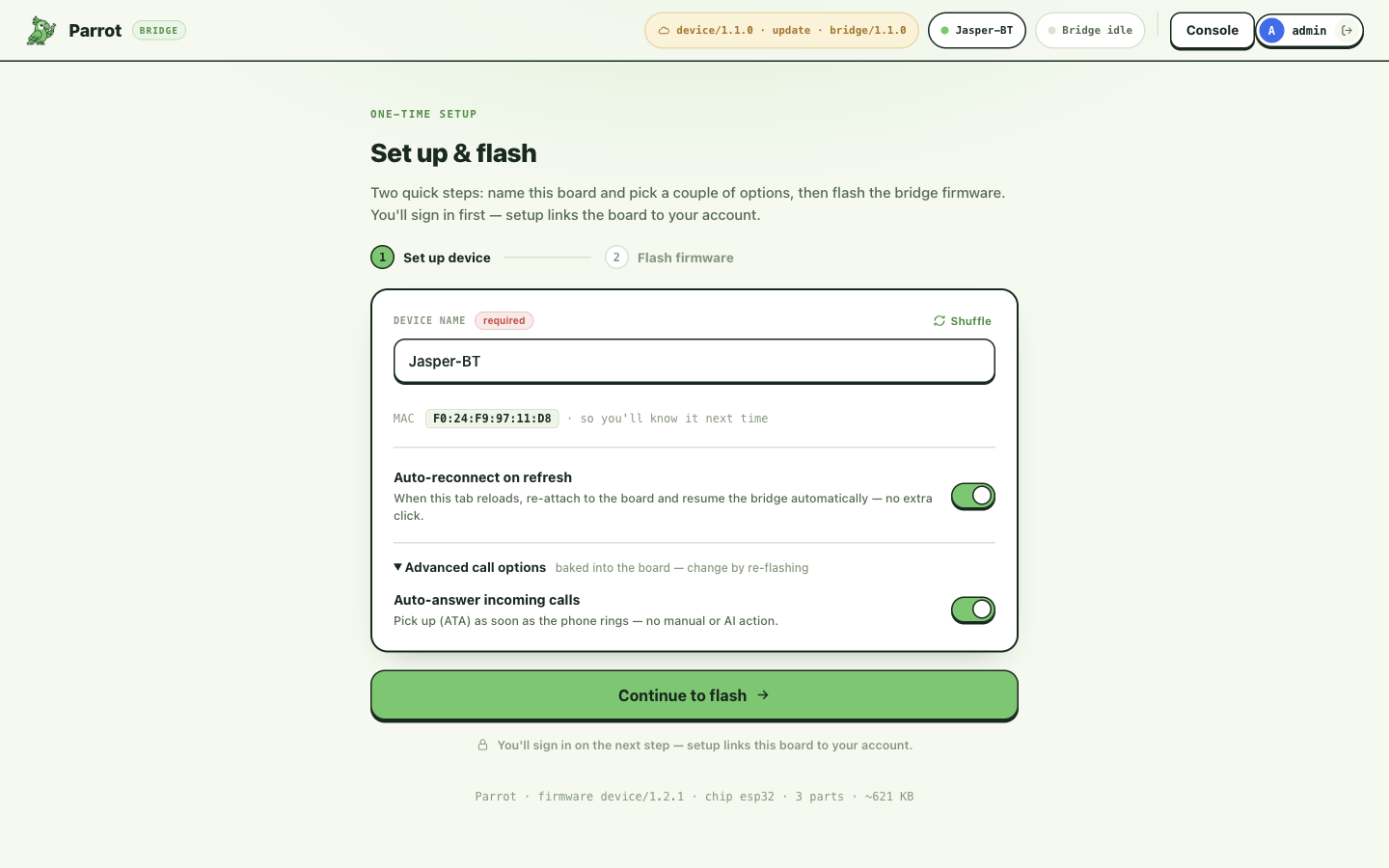
| Toggle | Default | What it means |
|---|---|---|
| Status light on the board | on | The board's LED shows what the call is doing (the light on the board). Turn it off if your board uses that pin for something of its own. |
The same screen also has Auto-start the bridge, which is not a board setting: it lives in this browser tab, you can change it any time, and it just means "whenever this page opens (or the board plugs back in) while you're signed in and the port is already authorized, start the bridge without another click". Leave it on.
Where did the other knobs go?
Earlier builds exposed more per-board options (audio-recovery reflexes, call-identity grace, prebuffer sizing). Those are now fixed at sensible values in the firmware itself — they were footguns more often than fixes. The concepts still exist inside the firmware (a Bluetooth blip shorter than ~10 s is treated as the same call, for instance); you just don't tune them per board anymore.
The light on the board
Most ESP32 boards have a small blue LED near the USB socket. Parrot uses it to say what the call is doing, so you can tell at a glance without opening the console:
| What you see | What it means |
|---|---|
| One short flash at power-up | The firmware started. It is also how you find out whether your board has this light. |
| Dark | No call. This is the normal resting state. |
| Fast blinking | Someone is calling in and the phone is still ringing. |
| A soft steady glow | A call is up, and nobody is talking right now. |
| The glow pulsing up to full | Someone is talking. The more of the last moment was speech, the faster it pulses — three speeds, the fastest about five times a second. |
| Three short flashes, then dark | The call just ended. |
The light follows the audio actually crossing the board, in both directions, so it pulses for the assistant's voice and the other person's alike — it never tells you which of them is talking.
Not every board has one. The light uses the pin that cheap ESP32 boards commonly wire their blue LED to (GPIO2). Espressif's own DevKitC has no user LED there, and a few boards use another pin. If yours shows nothing at all — not even the flash at power-up — it has no LED on that pin, and nothing else about the board is affected.
Turning it off. The light is the board's one toggle on the setup screen (Preference settings), baked in at flash time. You would turn it off for a board that uses that pin for something of its own — a board that simply has no LED there needs no change, since there is nothing to drive.
What flashing actually does
Flashing — the Bridge page's Flash firmware step — does three things in one go:
- Registers the board to your account, first. Before touching the board, the page asks the server for a device identity under whoever is signed in — if that fails (not signed in, or you've hit your account's device limit), nothing is written. There's no separate registration step later.
- Writes the firmware — bootloader, partition table, and the program itself, about 640 KB over the serial line.
- Bakes in the board's identity — a small, read-only config partition holding the device id, the Bluetooth name your phone will see, and the board's settings. This is what makes the board your specific phone line instead of interchangeable hardware.
After writing, the page reads the firmware version and device identity back over USB and shows them on the Board flashed screen — if it gets there, the flash is confirmed good.
Re-flashing is safe and normal. A board you already own keeps its identity through a re-flash — same device, same history, same assistant binding. Re-flashing is also how you change anything baked into the board: its name, its settings, and the firmware version itself.
One board, one owner
A board is claimed by whoever flashes it. If a different account re-flashes your board, it becomes a fresh device under that account — the hardware is interchangeable; the identity and history belong to the account that provisioned it.
No serial port appears when I click Connect
Almost always the USB cable — many are charge-only. Swap the cable first. If a port still doesn't appear, the board's USB chip may need a driver: CH340-based boards always do; CP2102/FTDI boards work driverless on macOS and Windows.
Provisioning failed / Sign in to flash
The server refused to register the board before flashing: you're not signed in (or the session expired — sign in again), or your account is at its device limit (Account shows the limit). Nothing was written to the board.
The flash succeeded but the board seems dead
The firmware doesn't start by itself after flashing — tap RST or unplug and replug, then Run the bridge. If the Board-flashed screen appeared, the flash itself was read back and confirmed; if reconnecting keeps failing, re-flash.
Getting into the bootloader
A classic ESP32 has no software-triggered programming mode (the newer S3/C3 chips have a USB bootloader; this chip predates that). Instead, two pins decide what the chip does on reset: hold BOOT (GPIO0) low while RST pulses, and the chip wakes up in its serial bootloader instead of your firmware. (Espressif documents the full mechanism — strapping pins, download mode, and the auto-reset circuit — in Boot Mode Selection.)
Dev boards wire the USB-serial chip's control lines (DTR/RTS — two sideband wires in the USB-serial link) to those pins so software can do that dance automatically, and the Bridge page tries exactly that first. But browsers can't always pulse those lines with the timing the auto-reset circuit needs — notoriously on CP2102 boards driven from macOS — so some boards need the manual version. The page detects the failure and shows this sequence; the ordering matters:
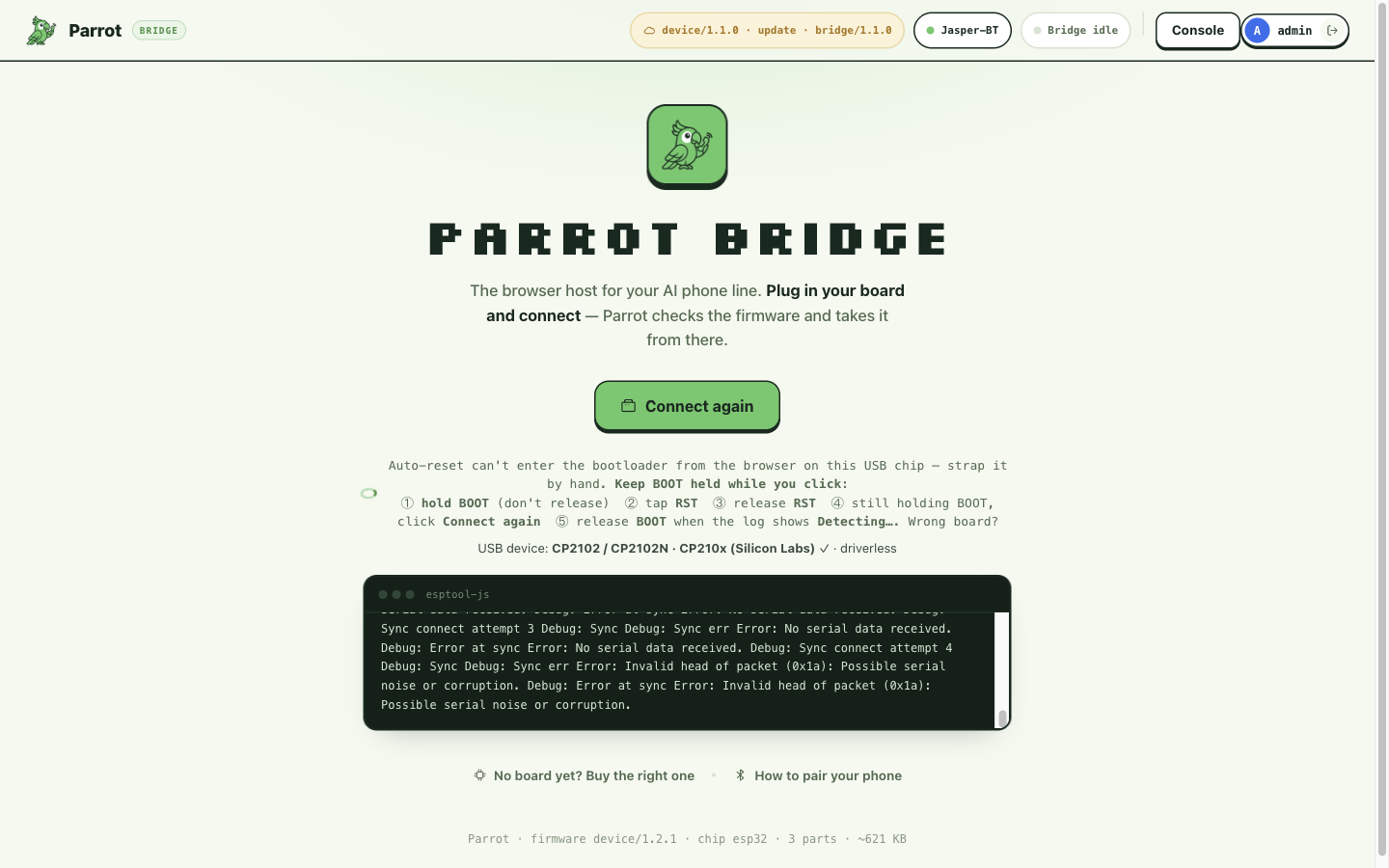
- Hold BOOT (and keep holding it).
- Tap RST, release RST.
- Still holding BOOT, click Connect again.
- Release BOOT once the log shows Detecting….
The common mistake is releasing BOOT before clicking Connect — the chip boots back into the old firmware and the connection fails the same way again. This is the single most error-prone step in setup, so if you'd rather watch it than read it:
Video: Two Ways of Entering Boot Mode on ESP32 (Sacred Labs) — the same BOOT/RST dance on a bare devkit.
More reading, if the board still won't cooperate:
- Espressif's official flashing troubleshooting guide — the vendor's own checklist for "failed to connect".
- Random Nerd Tutorials' "Failed to connect to ESP32: Timed out waiting for packet header" — the classic community write-up of the BOOT-button fix (their flow holds BOOT during an IDE upload; on the Bridge page the click is Connect again, but the button dance is identical).
- Espressif's Boot Mode Selection — the full strapping-pin mechanism, if you want to know why.
One more quirk: the bootloader times out after a while. If you connect, then spend minutes on the setup form, the board may have left the bootloader by the time you hit Flash — the page notices and asks you to reset (BOOT/RST) and flash again. Nothing is harmed.
Firmware versions & updates
The firmware's version is shown in the Bridge page's header (device/…)
and on the console's Devices list as the board last reported it — the
thing troubleshooting will ask for.
Firmware updates happen by re-flashing. When the cloud has a newer build than your board, the Bridge page shows an update chip in the header and the flash screen becomes an "Update available" flow — same steps as the first flash, identity kept. Nothing is ever flashed behind your back. (The bridge itself updates differently — see The bridge — and if the server insists on newer versions than yours, the rejection shows up in the bridge's live view: when the server refuses the connection.)
Where this fits
This page is the hardware depth behind the Quickstart. Once the board is flashed, paired, and online, everything else — the bridge, then calls, history, assistants, agents — is software: Your devices.