Making & Receiving Calls

This chapter covers the highlighted ends of the path: Parrot Cloud (where dials start and assistants run) and the phone call to the other party.
Your device is a real phone line, and calls can start three ways: you dial from the console, someone calls in, or your AI agent dials programmatically (covered in Connect your AI agent). However a call starts, it's handled the same from that point on — same assistant, same live controls, same record in History.
Dialing from the console
Open Devices, click your device, and hit Place call.
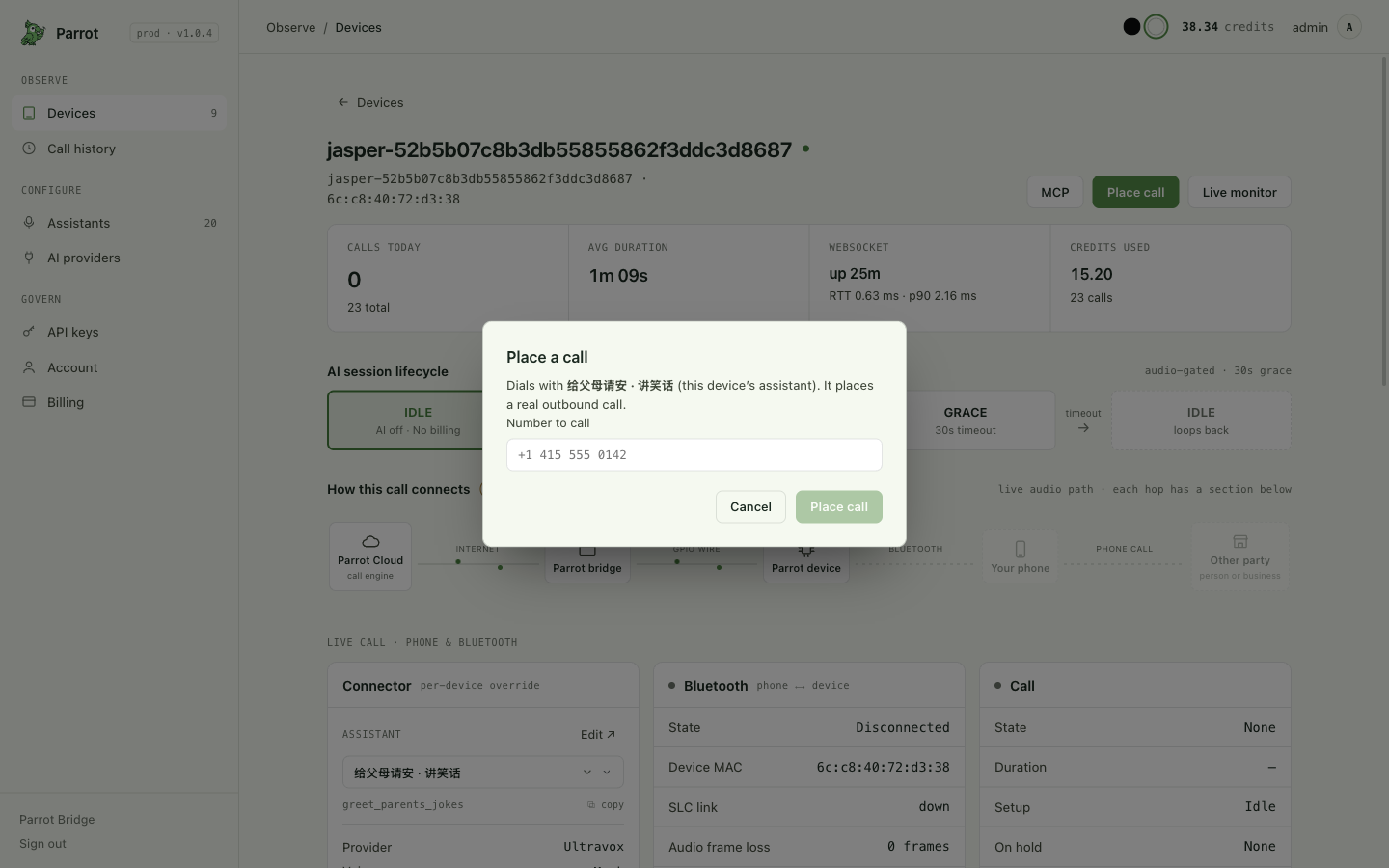
- Number to call — the real phone number to dial.
- If the device's assistant uses variables in its prompt (like
{{RESTAURANT_NAME}}— see Customizing your assistant), the dialog shows one input per variable. Filling them is optional: every variable carries a saved default (the editor refuses to save an assistant without one), so an empty field just means "use the default" — type something to override it for this one call.
The call dials with the device's assistant and runs on its own — you don't need to stay on the page. Console-placed calls are capped at 5 minutes (your account's own duration ceiling, shown on Account, still applies underneath).
What you should see: the phone paired to your board dials, and the console jumps straight to the live monitor so you're watching the call from its first ring.
Why a dial can be refused
Parrot checks everything before dialing, so a doomed call never burns a real phone call. You'll see a clear reason: the device is offline, the phone's Bluetooth isn't connected, another call is already in progress, or your account is out of credit or hit its daily call limit.
Watching a call live
The live monitor (you land on it automatically after dialing; it's also a button on the device page) shows the transcript as it happens, with sound-level meters for both sides.
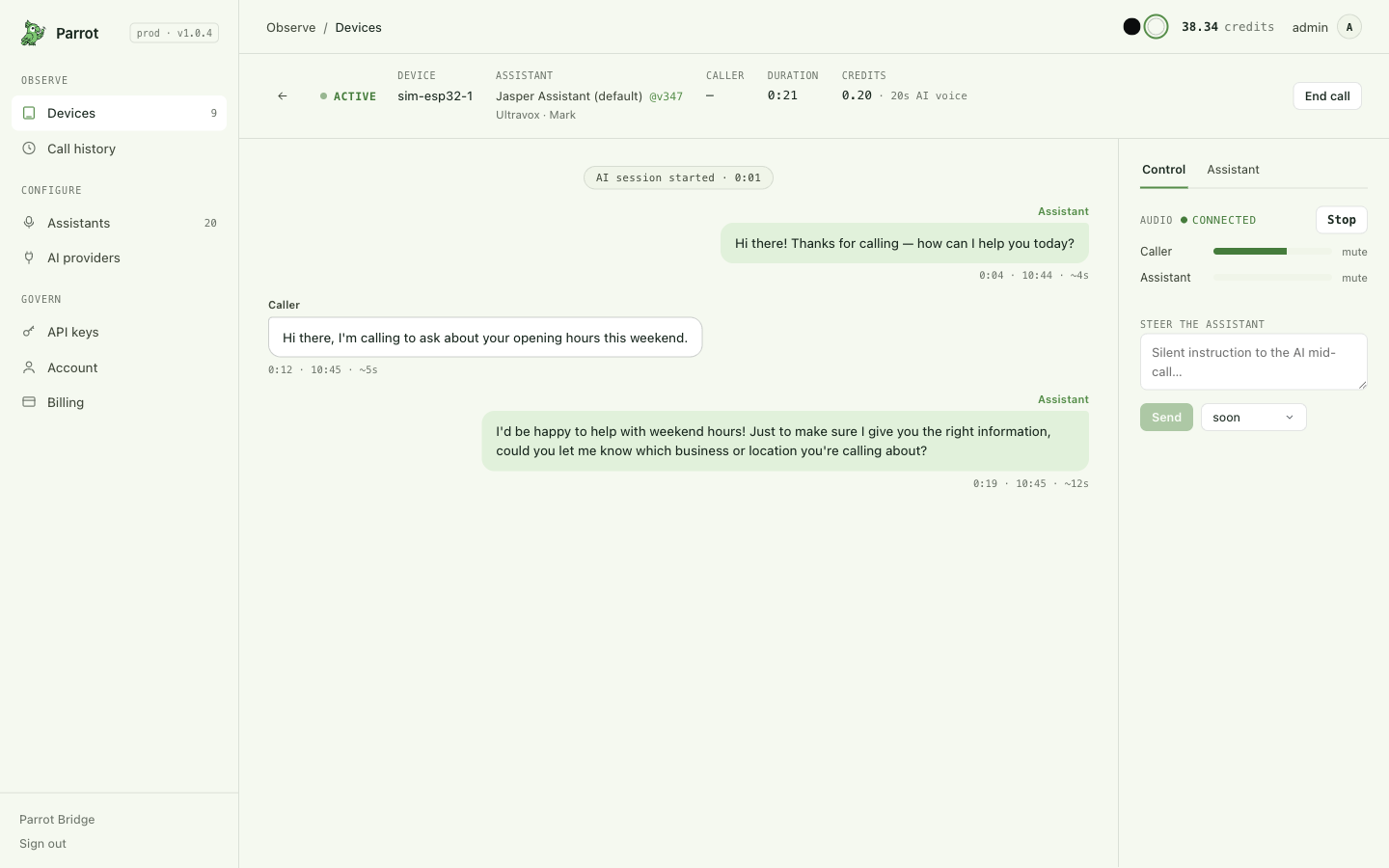
While the call runs you can:
- Listen in — hit Listen to hear the call's audio in the browser, with each side's meter and a per-side mute. The call is silent until you press it (and a browser may ask you to click once before it will play).
- Steer — type an instruction to your assistant ("wrap it up", "ask about parking too"). The other party never hears it; the assistant folds it into the conversation. On AI vendors that support it, an urgency picker controls whether the instruction can interrupt the assistant mid-sentence or waits for a natural pause.
- End the call — hang up immediately.
The rail's Assistant tab shows exactly what's running the call — provider, model, voice, and the full prompt as dialed — handy when a call behaves unexpectedly.
Receiving calls
The board answers every ring. The moment the phone rings — a cellular call or a VoIP call (WhatsApp, FaceTime, Messenger…) alike — the board picks up, and the device's assistant handles the call hands-free. There is nothing to configure and no decision window: pickup is immediate.
Want a particular call for yourself? Take it — mid-call, right from the phone's call screen: open the audio picker (the speaker icon) and switch the audio to your handset. The assistant leaves the call the instant the audio does, and it never fights you for it (see Who's on the call — you or the assistant).
Who's on the call — you or the assistant
One rule decides where the assistant is: wherever the call's audio is. The board is one of the phone's audio outputs, like any headset — while a call's audio routes to the board, the assistant hears and speaks; while it routes to the handset or speaker, the call is entirely yours. The phone's call screen switches this at any moment, on any call — the audio picker (speaker icon) is the per-call control.
That covers calls you make or take yourself, too: if you dial on the phone or the call's audio lands on your handset, it's your conversation — and routing its audio to the board at any point puts the assistant on it, mid-call, tracked and recorded and billed like any Parrot call from the moment it joins. History still tells the kinds apart: a row shows who took the call live ("Parrot answered", "Parrot dialed", or "Your call") and — when the assistant was only on for part of a call — for how long (see After the call).
Three guarantees make the audio route safe to use as the control:
- Switching away is never fought. The board has no way to pull a call's audio back on its own — once you route the audio to your handset, it stays there until you route it back. Switching back hands the call to the assistant again.
- Disconnecting is never chased. If you disconnect the board in the phone's Bluetooth settings, it goes quiet — it doesn't redial the connection while you hold the call on the phone. Reconnect whenever you want it back.
- A reconnect doesn't steal the call. If the Bluetooth link blips and comes back mid-call, phones like to shove the call's audio at the freshly-reconnected device. If the audio wasn't the board's when the link dropped, the board refuses that push — the call stays on your handset, and your next deliberate route-to-board still works.
Each new call starts fresh: taking one call back from the assistant doesn't change who answers the next ring.
Troubleshooting
\"Place call\" is greyed out
The device is offline — you can't dial through a board that isn't connected. See Your devices.
The dial was refused
The console tells you why, and each reason is what it sounds like: the phone's Bluetooth isn't connected; another call is already in progress; or your account is out of credit or hit its daily call limit.
The call connected but the AI never spoke
First: check where the phone is routing the call's audio. On the phone's call screen, the audio picker (speaker icon) must show your board, not handset or speaker — the assistant is only on the line while audio routes to the board (Who's on the call, and Your board & firmware). If the route is right, check the live monitor's audio meters: if the other side's meter moves but the assistant's doesn't, the AI session likely failed to start — the call report's Health section will say so. Try once more; if it repeats, check the assistant's provider/model settings (Customizing your assistant).
Incoming calls never get answered
The board answers a ring only while it's actually on the line: the bridge must be running and the phone's Bluetooth connected. Check the device shows online in the console and that your phone shows the board connected (Your devices). A call that rings while the board is disconnected is a normal phone call — nothing picks it up for you.
Where this fits
When a call ends — however it started — its transcript, outcome, and report are waiting in Call history. That's next: After the call.