Your Devices
A device is one phone line, end to end: the board you flashed, the bridge tab hosting it, and the phone paired to it. The console's Devices section is where you check on a line — whether it's up, what it's doing, and whether anything about the audio path needs attention.

A device is the highlighted stretch of the path: bridge + board + phone.
The Devices page
Open Devices in the console. Every line you own is listed, with four summary tiles up top — Online (reachable / total), Active calls, Bound (how many have an assistant), and the newest Firmware seen — plus a search box and All / Online / Offline filters.
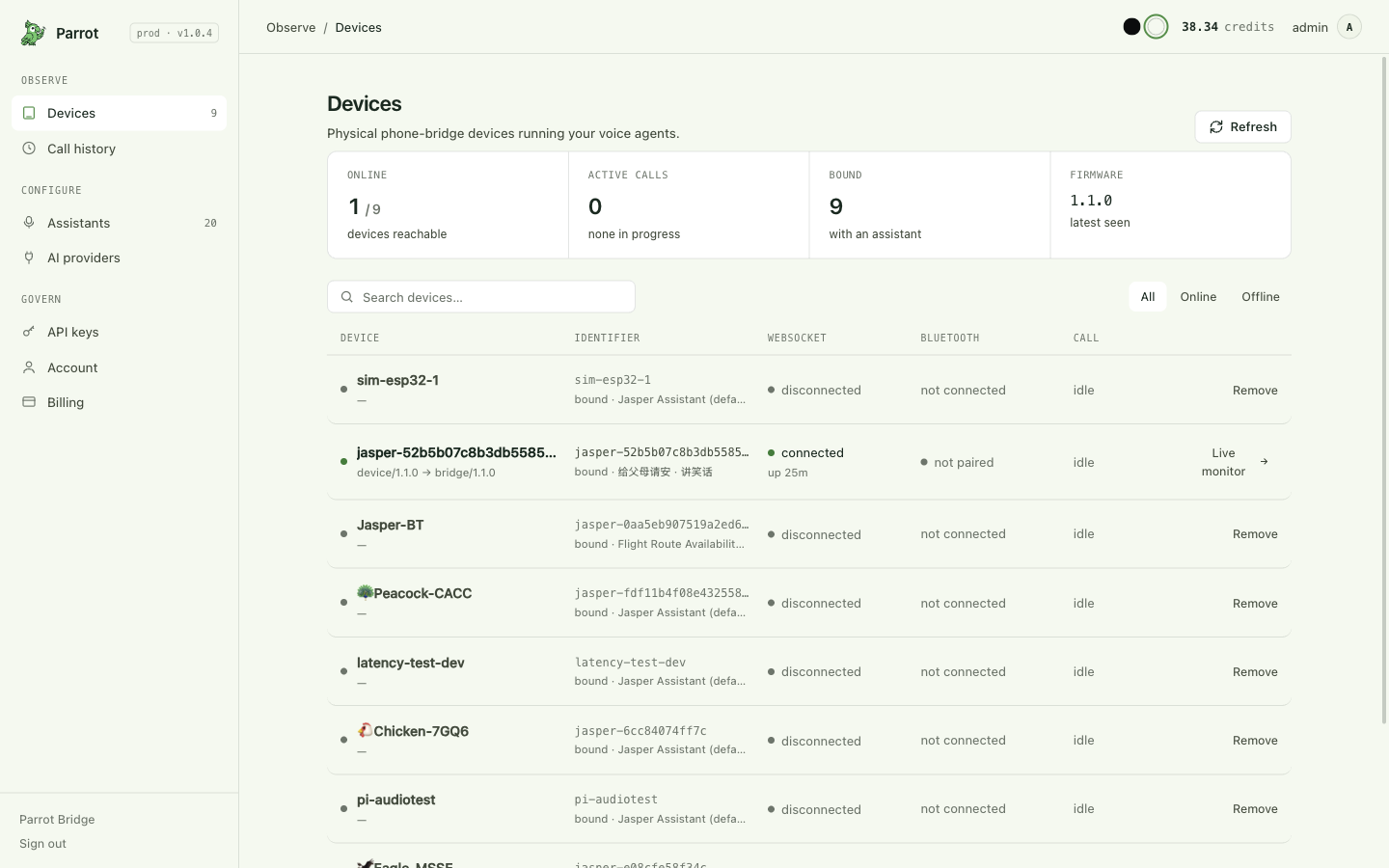
Each row shows the line's three states side by side:
- Bridge — whether a Parrot Bridge tab is currently hosting the board (with uptime when it is). This is the "is it online" column; an offline row offers Open bridge right there.
- Bluetooth — whether the board is currently connected to its phone. A board can be online but not paired; it can't carry calls in that state.
- Call — idle, ringing, or in a call right now.
The row's second line carries the device id, the bound assistant, and the firmware → bridge versions the board last reported (the thing troubleshooting will ask for). An offline row offers Remove — unbind a board you've retired (the board itself can always be re-flashed back in).
Can I run more than one line?
Yes — each board is its own device with its own assistant binding and its own keys. Flash and pair each one the same way, one Bridge tab per board.
The device page
Click a device for the full picture of that one line:
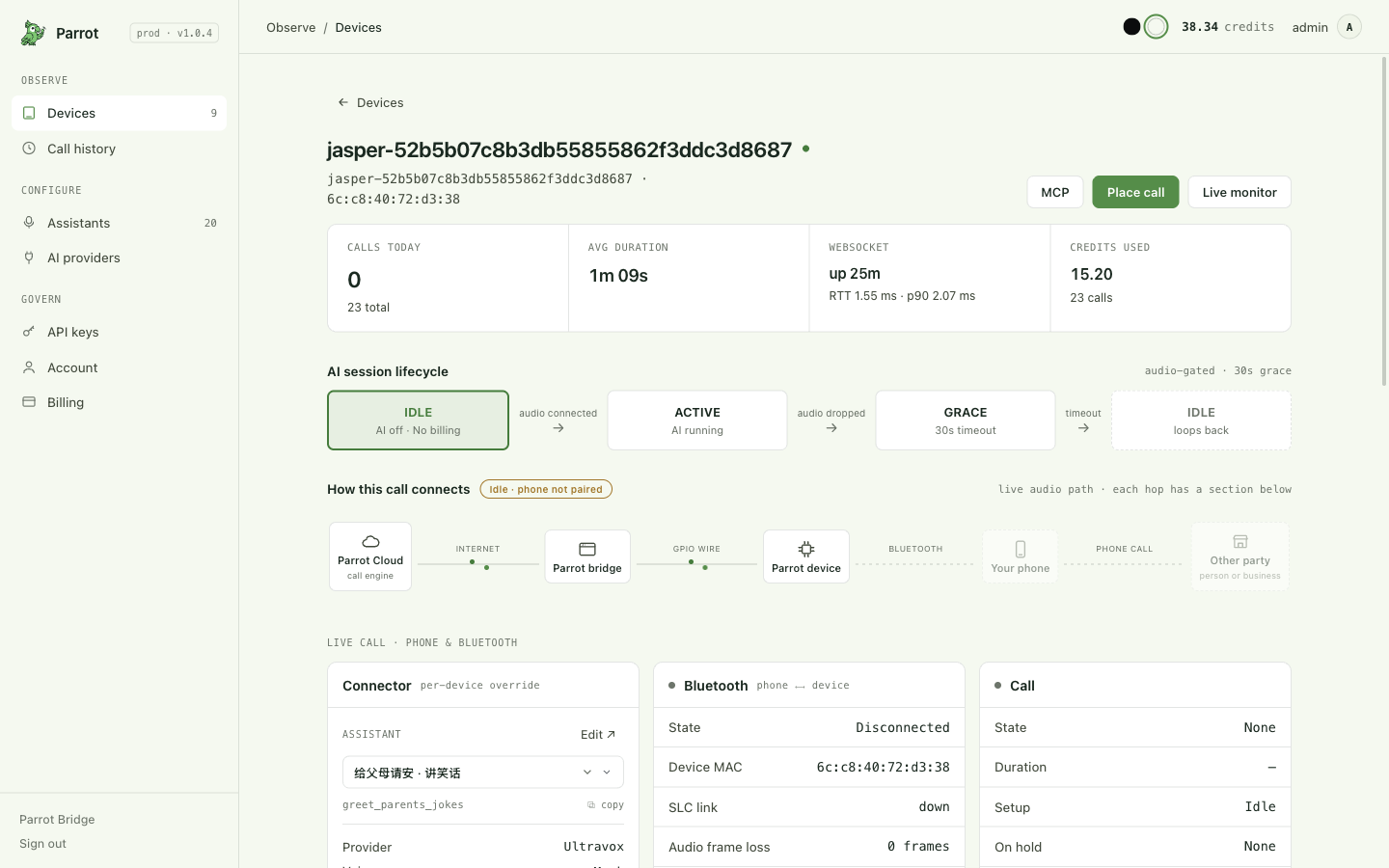
Top to bottom:
- Header actions — MCP (connect an agent to this line, Connect your AI agent), Place call (Making & receiving calls), and Live monitor (pulses green during a call).
- Stat tiles — calls today, average duration, whether the line is online, credits used on this line.
- AI session lifecycle — a small diagram showing where the AI is right now: Idle (AI off, no billing) → Active (audio connected, AI running) → a 30-second Grace window when audio drops (a Bluetooth blip doesn't kill the session) → back to Idle. Billing follows this: you pay for AI-connected time, not for the board sitting idle.
-
How this call connects — the live audio path drawn end to end: Parrot Cloud ↔ Parrot bridge ↔ Parrot device ↔ your phone ↔ the other party, so if something's broken you can see which link is broken rather than just "it doesn't work." Each hop has a matching detail card below, and each hop has its own chapter — this diagram is the wiki's map. What it looks like across the line's life:


 - Connector — which assistant this line runs, as a per-device override
with Edit and Reset to default (Customizing your
assistant).
- Live call cards — Bluetooth (link state, the board's radio MAC,
and the Audio frame loss counter — occasional small numbers are
normal, steadily climbing ones mean distance/interference), Call
(state, duration, caller id), Audio (codec and sample rate), and
Phone status — the paired phone's own cell signal, battery, and
roaming, as the phone reports them over the Hands-Free Profile (HFP)
(how that works).
Genuinely useful: if a call sounded bad, "one bar of signal" is a very
different diagnosis than a Parrot problem.
- Firmware & Bridge diagnostics — the board's memory headroom and audio
buffers, and the bridge/serial links' health counters (reconnects,
round-trip time, errors). Mostly for support conversations.
- Recent calls — the last calls on this line, linking into
Call history.
- Connector — which assistant this line runs, as a per-device override
with Edit and Reset to default (Customizing your
assistant).
- Live call cards — Bluetooth (link state, the board's radio MAC,
and the Audio frame loss counter — occasional small numbers are
normal, steadily climbing ones mean distance/interference), Call
(state, duration, caller id), Audio (codec and sample rate), and
Phone status — the paired phone's own cell signal, battery, and
roaming, as the phone reports them over the Hands-Free Profile (HFP)
(how that works).
Genuinely useful: if a call sounded bad, "one bar of signal" is a very
different diagnosis than a Parrot problem.
- Firmware & Bridge diagnostics — the board's memory headroom and audio
buffers, and the bridge/serial links' health counters (reconnects,
round-trip time, errors). Mostly for support conversations.
- Recent calls — the last calls on this line, linking into
Call history.
If the server refused the board's connection, a banner at the top says why in plain terms (see below).
When a device shows Offline
Offline means the board currently has no connection to Parrot. The usual causes, in order of likelihood:
- The Bridge tab was closed — the board's connection runs inside that
browser tab. Reopen the Parrot Bridge page (
/bridge/), and with auto-start on it comes back by itself; otherwise click Run the bridge. - The board lost power — check its USB cable.
- It just rebooted — give it ~10 seconds and refresh.
The console (or the Bridge page) says the server rejected the board
The banner names the reason. If it mentions the board not being yours or not provisioned, re-run setup on the Bridge page while signed in to the right account — flashing is what claims a board. If it mentions an outdated version, re-flash to update the firmware (or just reload the tab if it's the bridge that's outdated). Details: when the server refuses the connection.